
What to Know About Connecting ATMOS to SSI
Connect your ATMOS app with your SSI account in five steps, then send your ATMOS dives to SSI.
✅ Step 1: Update Your Apps
Make sure you have the latest versions of both the MySSI and ATMOS apps installed.
This guarantees compatibility and access to all new features.
✅ Step 2: Pair Your Accounts
On your mobile device, open the ATMOS app and go to Connected Apps → SSI.
Then tap Connect SSI Account to open the SSI website and sign in.
✅ Step 3: Accept the Link
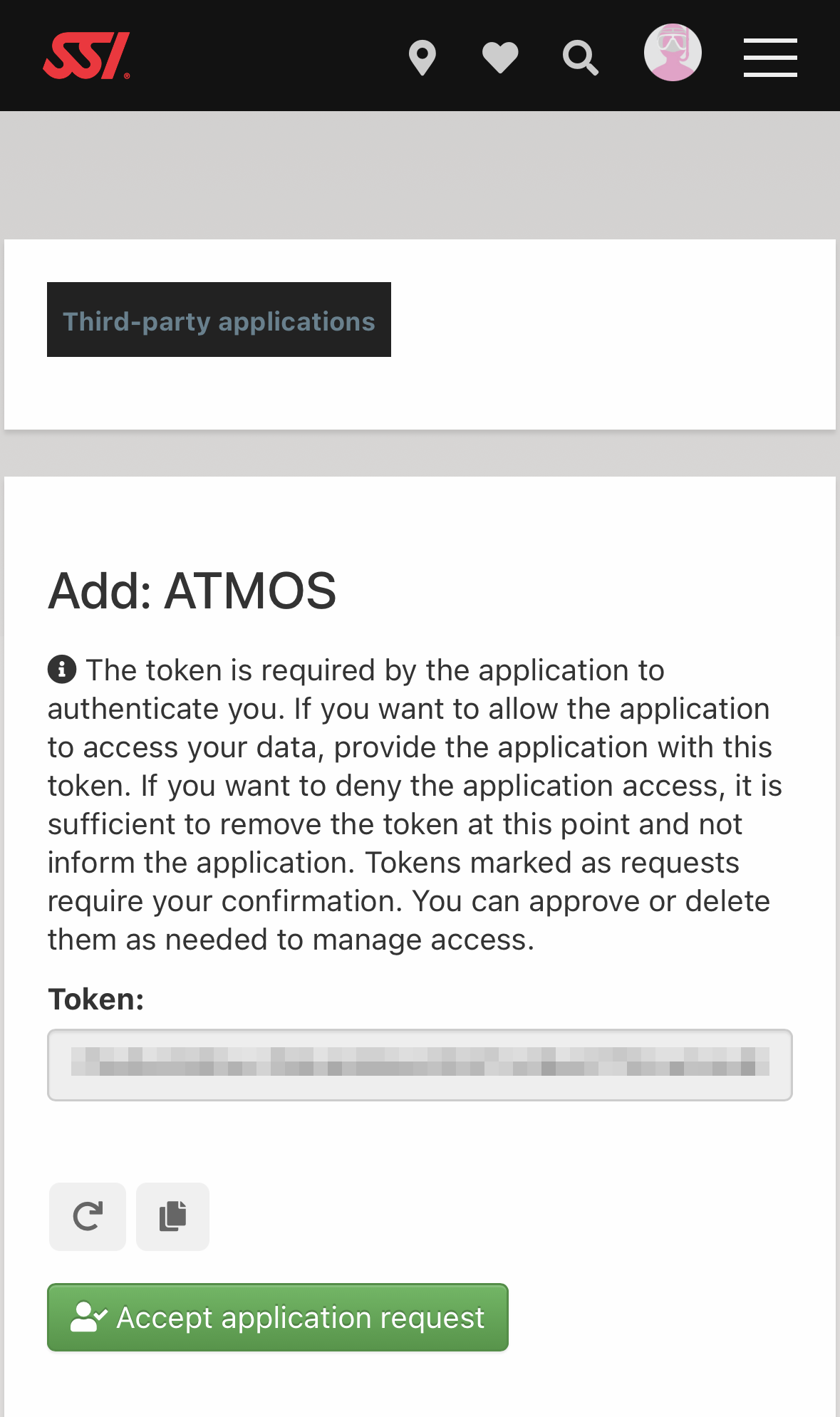
Open the SSI website and accept the pairing token by tapping the green button.
✅ Step 4: Complete the Connection
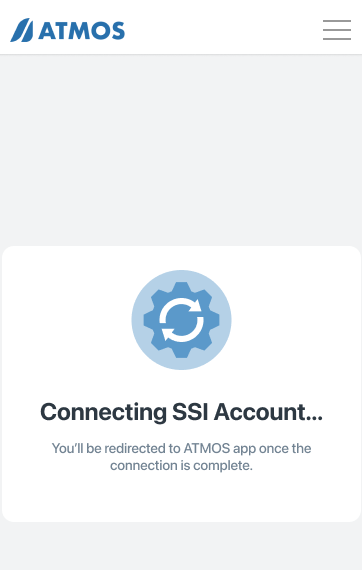
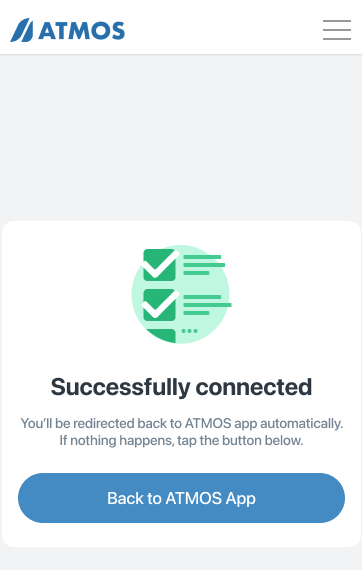
You’ll be redirected to the ATMOS website. Wait for the process to complete, then return to the ATMOS app.
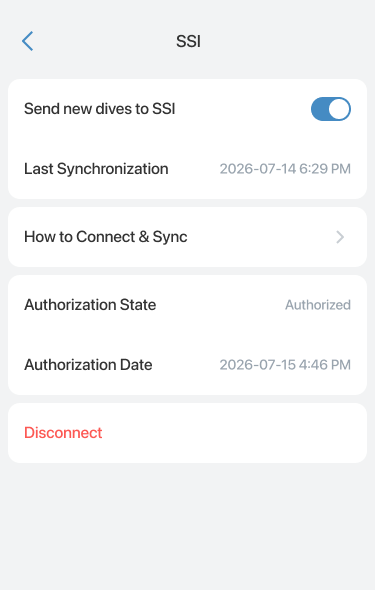
On the SSI page in the ATMOS app, verify that the Authorization State is displayed as Authorized, indicating that the connection was successful.
✅ Step 5: Import ATMOS Dives
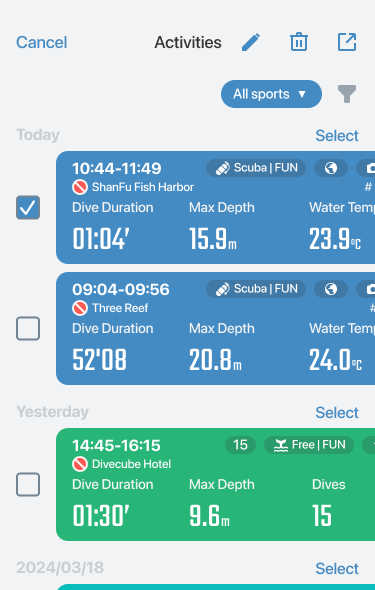
In the ATMOS app, go to the Logbook and tap Select in the top-right corner.
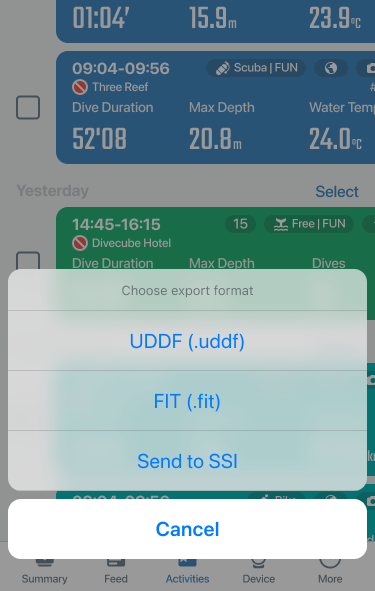
Choose the dives you want to send to your SSI account, then tap the Share button.
From the share sheet, select Send to SSI.
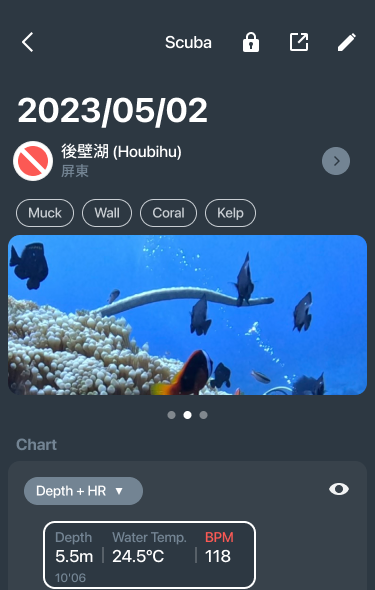
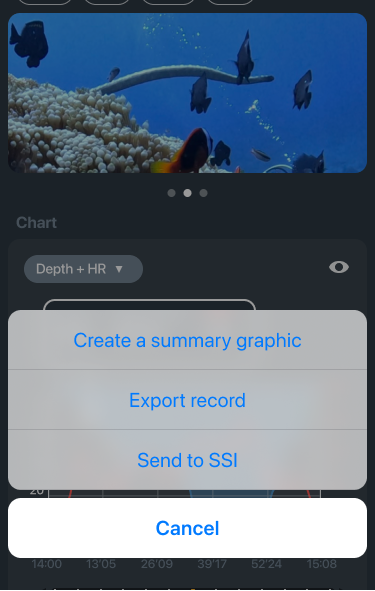
Alternatively, you can open an individual dive log, tap the  Share button in the top-right corner, and then select Send to SSI from the share sheet.
Contact us for more help: (Fb message) https://www.facebook.com/atmosocean